
Writing scenes in the scene editor
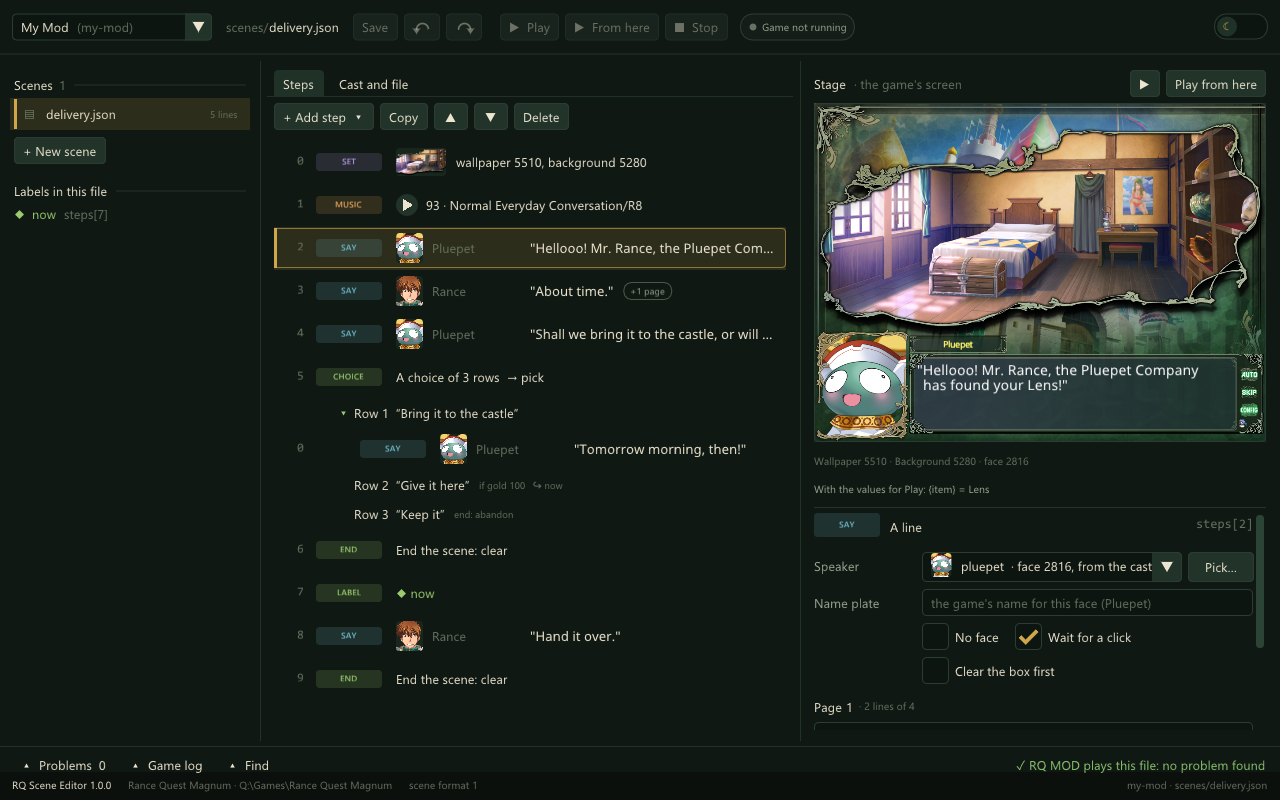
RQ Scene Editor (rq-scene-editor.exe) writes a mod's scene files without Lua and without typing JSON. It lists a mod's scenes and shows each one's steps with their branches, edits each step in fields of its own, draws the stage as the game draws it from the game's own pictures and font, checks the file with RQ MOD's own checker as you type, and plays it in the running game.
It came with RQ MOD 2.62.1, a program with a repository of its own that RQ MOD's package carries. Its version (1.0.0 in 2.62.1) shows at the bottom left of its window.
Opening it
rq-scene-editor.exe is in the game's xsystem4 folder, beside xsystem4.exe. Double-click it: it opens the game folder above it and lists the mods in its mods folder. Run from somewhere else, it asks for the game folder once and remembers it in rq-scene-editor.json beside it, with the look, the last mod and file, and the values for Play. Click the game's name at the bottom to pick another folder.
rq-scene-editor.exe --game "D:\Games\Rance Quest Magnum"
rq-scene-editor.exe --mod-dir "D:\Work\my-mod"--mod-dir, or Another mod's folder... in the mods box, opens a mod that is not in the game's mods folder. The editor only reads the game's files; what it writes is the mod's scene files, when you save. On a screen that Windows scales, the window grows with the scale; --scale, from 1 to 4, sets another size.
The window
| Part | What it holds |
|---|---|
| Top bar | The mod, the file, Save, Undo, Redo; ▶ Play, ▶ From here and ■ Stop, with the game's state beside them; the look, Copandon (dark) or Parchment (light) |
| Scenes, at the left | The mod's scene files (every .json under scenes, and any other scene file in the mod's folder), each with its count of problems; + New scene; the open file's labels |
| Steps, in the middle | The steps as a list, a branch's steps folded under it; Cast and file is the second tab |
| The step, at the right | The stage at the selected step, the step's fields, and its JSON, folded |
| The bottom panel | Problems, Game log and Find, folded to their tabs while the file has no problem |
Steps
+ Add step puts a step of any kind after the selected one, and the + that shows between two rows puts one there. Drag a row to move it, also into a branch or out of one. Each kind has fields of its own: a line's speaker and pages, a picture's number with Pick..., an effect or a shake by its name, a place of the world map. What you type shows in the list and on the stage at once, and one Ctrl+Z takes back a field's whole change. An optional field left empty is taken out of the file, so the game's default applies. JSON, under the fields, shows the step as the file holds it and takes a change by hand.
For a line, pick the speaker from the cast or any face; each page is a field of its own, with + page. The stage lays the page out as the game's message box does: the game's font, a long line broken between words, the indent after an opening quote, four lines a page. The editor warns of what the box cannot show: a fifth line (the game cuts it off), a letter the game's font does not have (it has no accented letters), and a {name} that nothing sets.
▶ on the stage plays the selected step's motion: the game's transitions, a background sliding in, shakes, the flash, the letters coming in at the text speed, the world map's tag. Play from here, under the stage, plays the scene on from the selected step without the game: a click or Space shows the next page, a choice waits for a click on a row, an if asks which way it goes, music and sounds play. A mod's function is passed by and named under the stage. Escape stops it.
A line makes the game's little sounds as its letters come in, as in the game: each face of the game has its own pair, and a picture of the mod's gets the game's default pair. They sound only inside quotes (", “ ”, ( ) and the Japanese ones), so a line written without quotes is silent, and narration makes none.
Faces, pictures, music and sounds
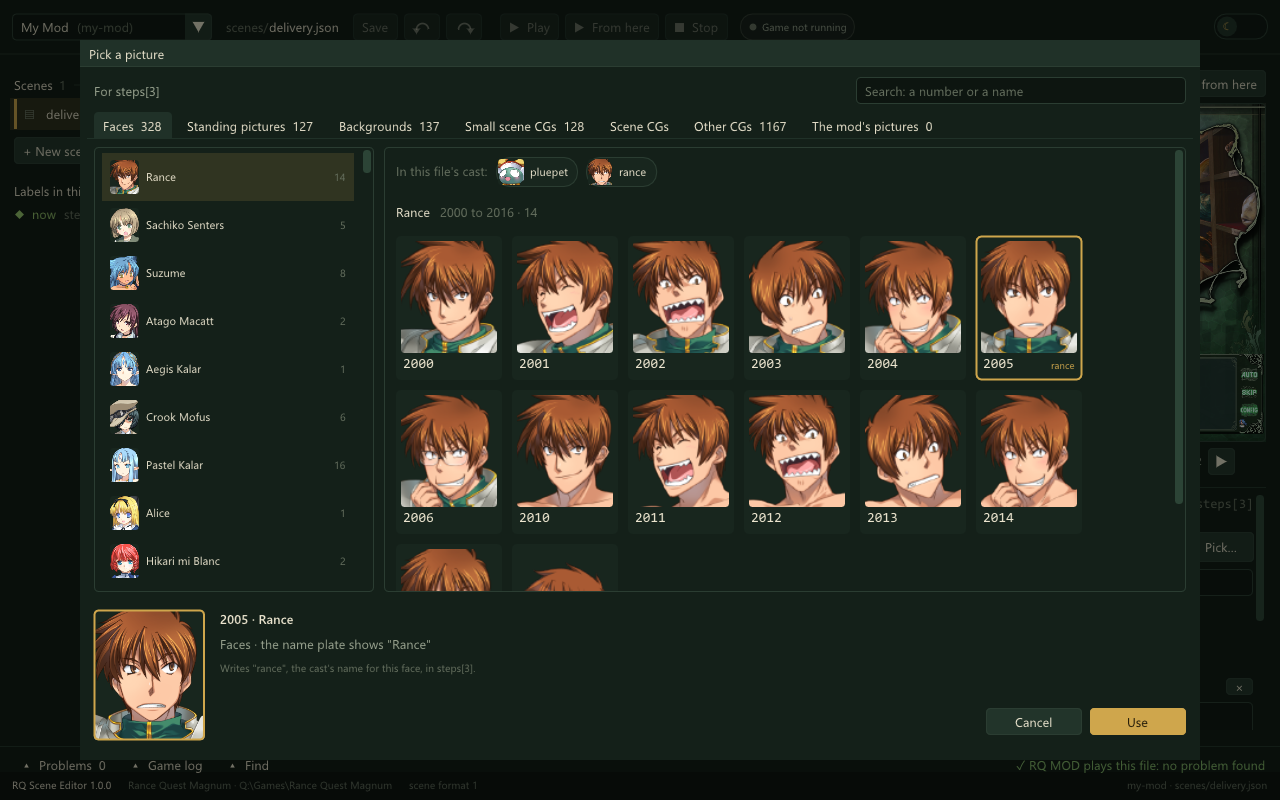
Pick... beside a picture, a face, a track or a sound opens a window of the game's own: the faces and the standing pictures by character (RQ MOD's names), the backgrounds, the game's other CGs by hundreds, and the pictures in the mod's folder. Search by a number or a name; a double click or Use writes the pick. For a line's speaker the file's cast comes first, and Add to the cast as... puts another face into the cast with a name. The scene CGs, the game's event pictures with its adult scenes among them, show only after Show the scene CGs. A track or a sound plays with ▶ before you pick it.
The pictures, the music and the font come from your copy of the game; the editor carries none.
Choices and conditions
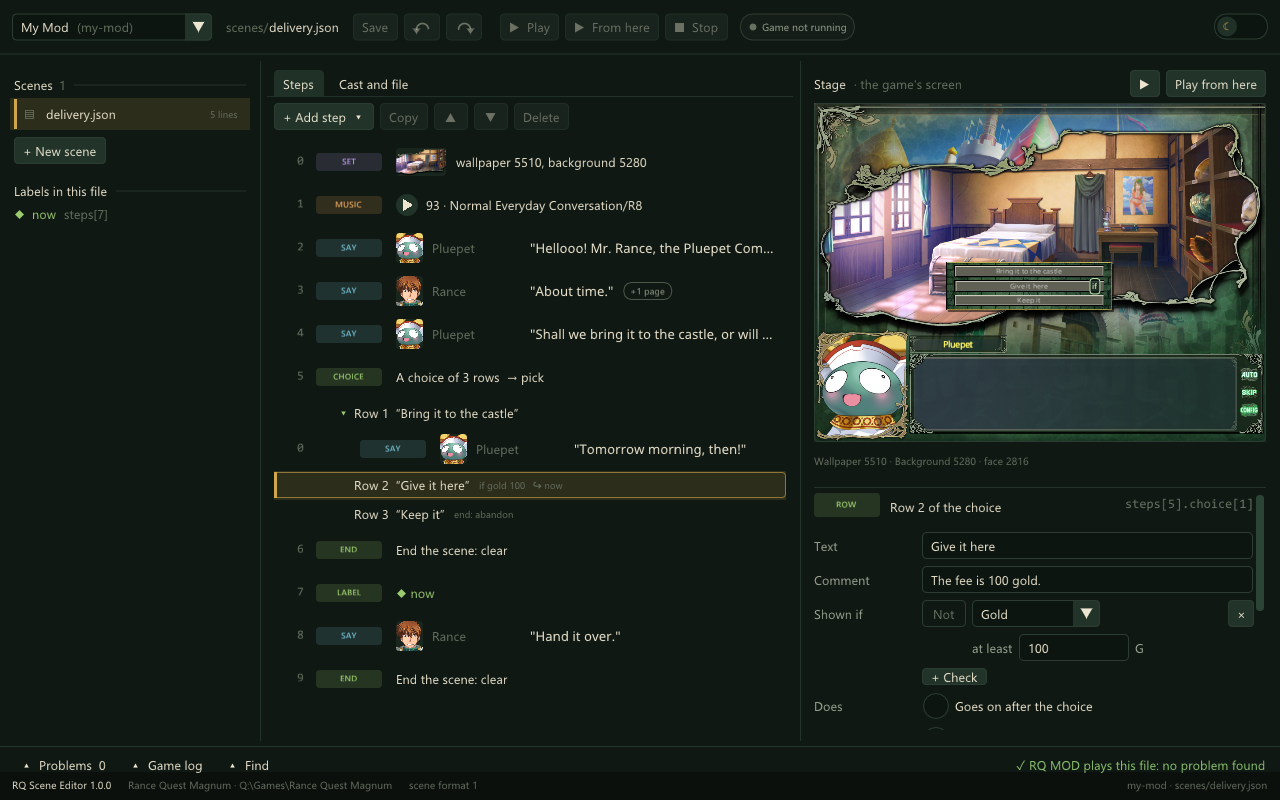
A choice's rows are listed under it. Click a row for its fields: the text, the comment (shown in the game's comment window), Shown if (the row shows only when its condition holds), Does (go on after the choice, with steps of its own; go to a label; or end the scene with a value such as clear), its colour and its sound. An if has its then and else under it.
A condition is built from checks, each a kind from a list: a flag, a variable, the mod's function, a quest cleared, a character recruited or in the party, an item owned, the gold, a chance. Not turns a check around, and + Group adds a group: All of, Any of, Not all of or None of. Quests, characters and items come from RQ MOD's names, by name or number, or as a mod's own id (mymod:thing).
A goto picks one of the file's labels, and a label renamed takes the go-tos to it with it.
Cast and file
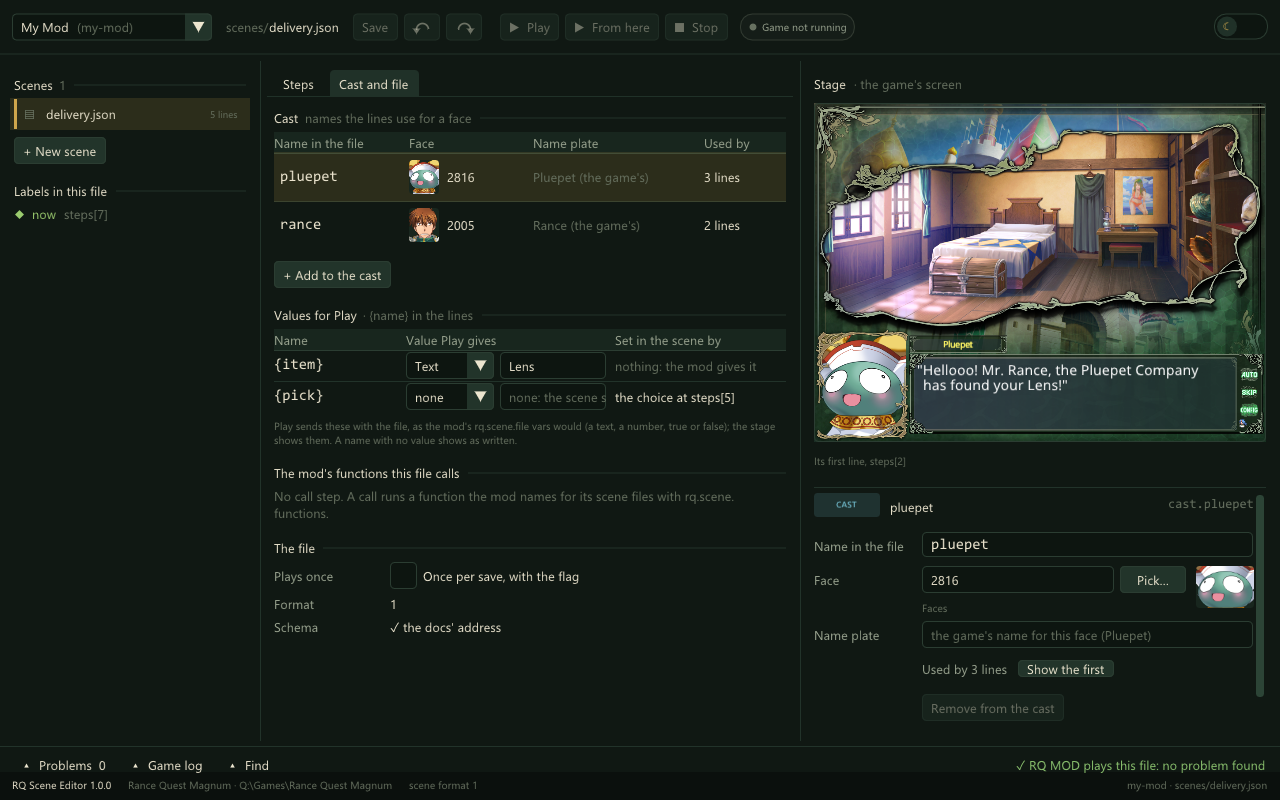
The second tab of the steps. Cast: each entry's face, name plate and the lines that use it; a renamed entry takes those lines with it. Values for Play: each {name} of the file, with the value Play gives it (as a mod's vars would) and its type (a text, a number, true or false, or none), and the choice or call that sets it in the scene; the stage shows the value too. The mod's functions this file calls, each with where it is called and, with the game running, whether the mod names it.
Problems, the game's log and Find
The editor runs RQ MOD's own checker on the file as you type, the one the game runs before it plays a scene, so its problems are the game's, in the game's words, with the game's names of quests, characters and items. A file with a problem does not play in the game. Click a problem to go to its step, row or cast entry. With the game running the mod, a call to a function the mod does not name with rq.scene.functions is a problem too, as in the game.
Game log shows the lines the game writes in logs\rqmod.log for the open mod, as they come; a line that names a place of a scene file opens that file there. Find (Ctrl+F) looks for a text in every line, name plate, choice row and value of the mod's scene files, and a click on a hit opens it.
Playing it in the game
Start the game with RQ MOD (2.61.0 or newer), with the mod in its mods folder: the folder the editor has open. The pill beside the buttons says what the editor sees: the game not running, running with RQ MOD's version, the mod not loaded, or loaded from another folder.
- ▶ Play (F5) saves the file and plays it in the game from its first step.
- ▶ From here (F6) plays it from the selected step.
- ■ Stop (Shift+F5) ends it at its next step, after the click its line waits for.
The step the game plays is lit in the list. The game lets a scene in at its next frame, unless the System menu or Config is open, a scene of its own plays, or it is saving. Play sends the Values for Play; a text that looks like a number, true or false goes as a text from RQ MOD 2.62.1.
What plays is the saved file, with the mod's functions and the game's commands for real: play on a save you can lose. Play is rqmod-ctl playscene from a window.
Keys
| Key | |
|---|---|
| Ctrl+S | Save |
| Ctrl+Z, Ctrl+Y | Undo, redo |
| Up, Down | The step before, the step after |
| Alt+Up, Alt+Down | Move the selected step |
| Ctrl+D, Delete | Copy the selected step, delete it |
| F5, F6, Shift+F5 | Play, From here, Stop, in the game |
| Ctrl+F | Find |
The file it writes
The editor writes every scene file in one layout, so that a change moves only the lines it changes: a step on one line, a branch's steps under it, four spaces further in. A file laid out by hand or by another program keeps its values, and its first save asks before it rewrites the file in this layout. A file in a newer scene format than the editor knows opens read-only, as does one the game cannot read: fix that one in a text editor, and the editor reads it again as soon as it changes.
On the command line
rq-scene-editor.exe --check --game "D:\Games\Rance Quest Magnum" --mod my-mod --strict--check reads every scene file of a mod (--mod), of all the game's mods, or of a folder (--dir) as RQ MOD reads it, checks it with RQ MOD's checker and prints a JSON report; with --strict it exits 1 when RQ MOD would not play a file, for a check before you share a mod. --format FILE... writes files in the editor's layout, and --shot draws the window into a PNG, as for this page. The editor's README lists them all.